Internet Drops Randomly: Router, Modem, Wi-Fi, or ISP?
Quick diagnostic answer
If your internet drops randomly, do not start by blaming the router, buying new hardware, or factory resetting anything.
Start by checking whether the drop affects one device, all Wi-Fi devices, or wired Ethernet devices too.
That first split tells you where to look next. If only one device drops, focus on that device. If only Wi-Fi drops, focus on wireless signal, interference, bands, mesh, or router Wi-Fi settings. If Ethernet drops too, the issue may be router-side, modem-side, gateway-side, ONT-side, DNS, DHCP, WAN, or provider-side.
This guide helps you diagnose the pattern before changing settings or calling your provider. Contact your provider when Ethernet and Wi-Fi both drop, all devices lose service together, or the modem, gateway, or ONT does not stay online.
Start with this first check
The fastest useful check is simple:
Use two devices if possible, and test one wired connection if you can.
You are trying to answer three questions:
Does the drop happen on one device or every device?
Does the drop happen only on Wi-Fi, or does Ethernet fail too?
When it drops, does the device lose Wi-Fi, lose internet, or only fail to load websites?
Those answers matter more than guessing.
A phone disconnecting from Wi-Fi in one room is not the same problem as every device losing internet at the same time. A laptop that stays connected to Wi-Fi but cannot load websites is not the same as a router that loses its Internet or WAN connection. A wired computer dropping at the same time as Wi-Fi devices points to a wider problem than wireless signal alone.
What random internet drops usually mean
“Internet drops randomly” is a broad symptom. It can mean several different things.
It can mean your device disconnects from Wi-Fi.
It can mean your device stays connected to Wi-Fi but has no internet.
It can mean every device loses service at the same time.
It can mean websites stop loading, even though some apps still work.
It can mean the router, modem, gateway, or ONT loses its connection to the provider.
It can also mean a local setting, DNS issue, DHCP issue, router firmware problem, mesh placement problem, cable issue, or provider outage.
That is why the article needs diagnosis first.
Do not treat every random drop as the same failure. The pattern decides the cause.
Main diagnostic matrix
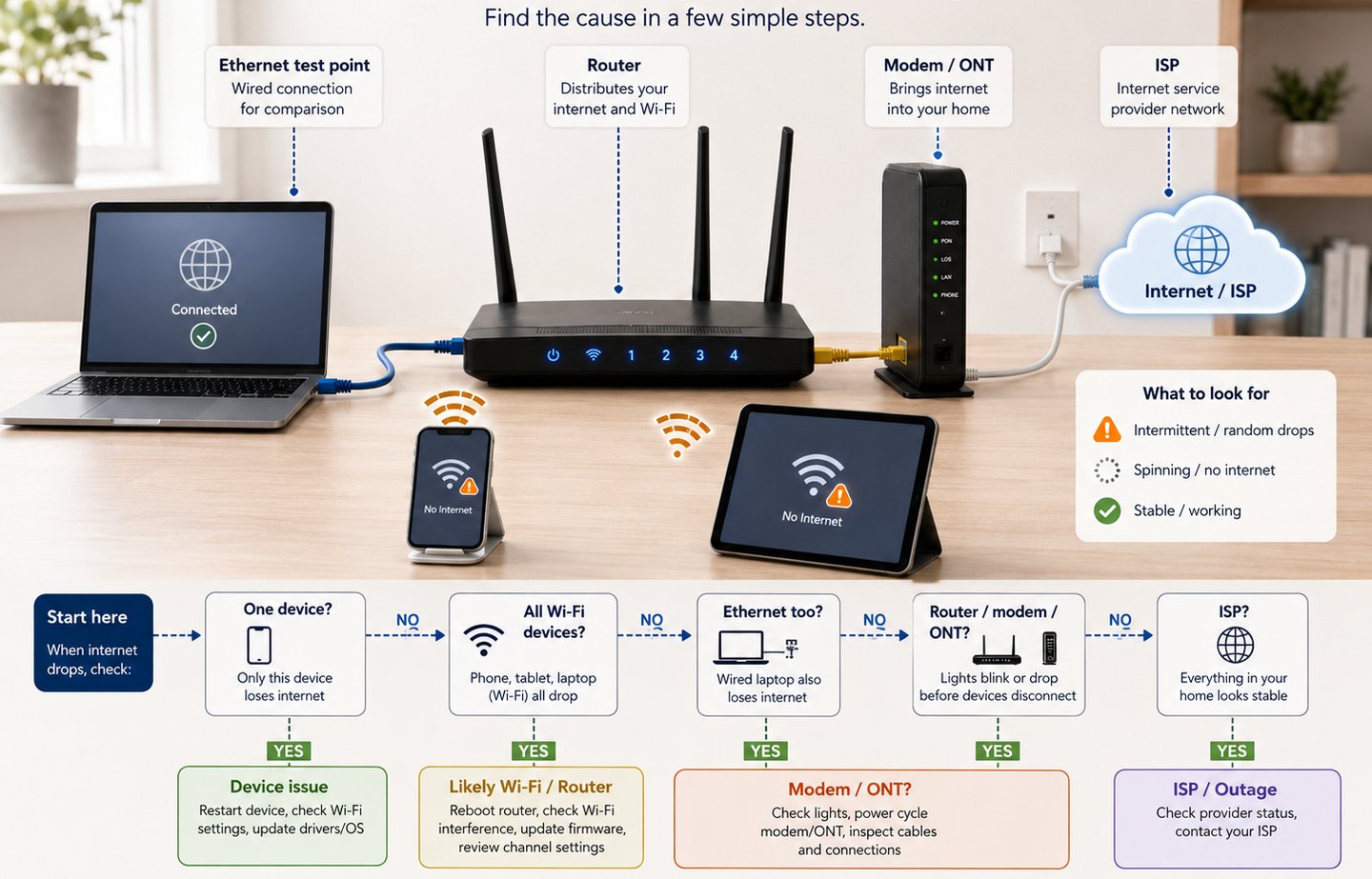
Use this matrix as a starting point. It will not identify every exact model-specific fault, but it will stop you from troubleshooting the wrong side of the network.
Step-by-step diagnostic path
Step 1: Confirm the pattern
Write down what actually happens.
Does Wi-Fi disappear from the device?
Does the device stay connected but say there is no internet?
Do websites stop loading but the Wi-Fi icon stays on?
Does the router Internet light change?
Does the problem fix itself after a few seconds or minutes?
This first observation matters. It separates a Wi-Fi connection problem from a full internet path problem.
Step 2: Check one device vs all devices
Test another phone, laptop, tablet, or TV when the drop happens.
If only one device drops, focus on that device first.
If every device drops at the same time, focus on the router, modem, gateway, ONT, or ISP path.
If some devices drop and others stay online, look for a Wi-Fi band, room, mesh node, or device-type pattern.
Step 3: Check Wi-Fi vs Ethernet
If possible, connect a laptop or desktop to the router with Ethernet.
Then wait for the next drop or test during the problem.
If Ethernet stays online while Wi-Fi drops, the provider line is probably not the first suspect. Focus on Wi-Fi signal, router wireless settings, interference, mesh, extender, or device Wi-Fi behavior.
If Ethernet drops too, the issue is wider than Wi-Fi. Focus on the router, gateway, modem, ONT, WAN connection, or provider.
Use the Ethernet vs Wi-Fi guide if you need a plain-English explanation of what a wired test proves.
Step 4: Restart safely
Restart the affected device first if only one device drops.
If the whole network drops, restart your equipment in the right order.
If you have a separate modem or ONT and router, turn off both for 30 to 60 seconds. Turn on the modem or ONT first and wait until it reaches its normal online state. Then turn on the router.
If you use one combined gateway, restart that one device.
Do not factory reset yet. A restart and a factory reset are not the same thing.
Step 5: Check the router, modem, gateway, or ONT status
Look for status information in the router app, gateway app, or admin page.
You are not trying to decode every technical label. You are looking for obvious changes such as internet disconnected, WAN disconnected, no service, offline, authentication failure, or repeated reconnects.
Do not assume every red or blinking light means the same thing. Light meanings vary by model and provider.
If the router Internet or WAN light changes during the drop, use the router Internet light guide.
Step 6: Check provider status
Check your provider’s outage or service-status page.
This matters when all devices drop, Ethernet fails too, or the modem, gateway, or ONT does not stay online.
Do not wait until you have changed many settings. If the provider has a known outage, changing your router settings will not fix the line.
Step 7: Look for DNS or name-resolution symptoms
Sometimes the internet path is not fully down. Instead, websites fail because names are not resolving correctly.
A beginner-friendly sign is this:
Some apps may keep working for a short time, but new websites fail to load.
DNS behavior can vary by device, router, and provider. Do not change DNS settings randomly at the start. First check whether the issue affects one device or every device.
If every device has the same website-loading problem while the router says it is online, DNS may be one branch to investigate later.
Step 8: Check recent changes
Random drops often begin after something changed.
Think about:
New router or gateway
New mesh node or extender
Router firmware update
ISP equipment change
Moved router
New smart home device
Changed Wi-Fi name or password
Changed DNS, DHCP, bridge mode, or passthrough mode
Power outage
New cable or wall socket
Undo one recent change at a time. Do not change five settings together.
Step 9: Check Wi-Fi placement and interference
If Ethernet stays online but Wi-Fi drops, stay on the Wi-Fi branch.
Move closer to the router and retest.
If Wi-Fi becomes stable near the router, distance, walls, floors, interference, or band choice may be involved.
Keep the router in an open, central, elevated place if possible. Avoid hiding it behind a TV, inside a cabinet, near metal objects, or next to large electronics.
If the problem happens far from the router, use the Wi-Fi works near the router but not in another room guide.
Step 10: Check mesh nodes and extenders
Mesh nodes and extenders can help coverage, but they can also repeat or pass along a weak connection.
If drops happen near one mesh node or extender, compare that spot with the main router.
Move the node closer to the main router if it sits in a weak-signal area.
Do not place a mesh node deep inside the dead zone and expect it to fix the problem. It still needs a good connection back to the main router or gateway.
Step 11: Save evidence before calling support
If the problem keeps returning, record:
Date and time of drops
Whether one device or all devices were affected
Whether Ethernet failed too
Router, gateway, modem, or ONT status during the drop
Any visible error message
Whether the provider outage page showed a problem
What you already restarted or changed
This makes provider support faster and reduces the chance of being told to repeat basic steps.
What each result points to
If only one device drops
This usually points to a device-side issue.
The device may have a weak Wi-Fi radio, old driver, operating system issue, saved-network problem, VPN issue, power-saving behavior, or a local setting problem.
Try the same device near the router. Compare it with another device in the same place. Restart it. Forget and rejoin the Wi-Fi network. Update the device if updates are available.
If the issue is one-device speed or stability, use the one-device internet problem guide.
If only Wi-Fi devices drop
This usually points to the wireless side.
Common branches include distance, walls, interference, overloaded Wi-Fi, bad router placement, mesh placement, extender problems, or a router wireless setting.
Ethernet staying stable is an important clue. It means the provider line may be working while the wireless part fails.
If Ethernet is stable but Wi-Fi is slow or unstable, use the Ethernet works but Wi-Fi is slow guide.
If Ethernet and Wi-Fi drop together
This points to a wider issue.
The router may be losing its WAN connection. The modem, gateway, or ONT may be losing service. The provider may have an outage. A cable or port may be failing. The router may be rebooting or losing configuration.
At this point, stop focusing only on Wi-Fi.
Check the modem, gateway, or ONT. Check the provider status page. Restart equipment in the correct order. If the issue repeats, contact the provider with your test results.
If devices stay connected but have no internet
This can point to DHCP, DNS, router, gateway, or upstream issues.
In plain English, your device may still be connected to the local network, but the path to the wider internet is not working properly.
Use the Wi-Fi connected but no internet guide if the device stays on Wi-Fi but cannot load anything.
If the router light changes during the drop
This may point to the router, WAN path, modem, gateway, ONT, or provider.
Do not rely on color alone. Router light meanings vary.
Use the router app, admin page, or manual if available. Check whether the light change happens at the same time as the actual drop. Then check provider status before changing advanced settings.
If drops happen after heavy usage
Heavy streaming, gaming, downloads, or many active devices can expose weak Wi-Fi, router load, congestion, or provider-side issues.
Compare Ethernet and Wi-Fi during heavy usage.
If Ethernet stays stable but Wi-Fi fails, focus on wireless load, interference, placement, or mesh. If Ethernet also fails, focus on router, modem, gateway, ONT, or provider.
Free fixes to try before buying anything
Start with free checks before spending money.
Restart the affected device.
Restart the router or gateway.
If you have a separate modem or ONT, restart that first, then the router.
Move closer to the router and compare results.
Try Ethernet if possible.
Move the router to a better position if Wi-Fi drops are room-based.
Move mesh nodes closer to the main router.
Check the provider status page.
Update device software or Wi-Fi drivers when available.
Check router firmware only through the official router or provider app.
Review recent changes and undo them one at a time.
These steps cost nothing and often reveal the real branch.
What not to do too early
Do not factory reset first.
A factory reset can erase the Wi-Fi name and password, router admin settings, PPPoE login, VLAN settings, IPTV settings, MAC clone settings, or other provider-specific configuration.
Do not buy a new router first.
Random drops can come from the ISP line, modem, gateway, ONT, Ethernet cable, Wi-Fi placement, one device, mesh node, extender, DNS, DHCP, or a provider outage.
Do not change random advanced settings.
Changing DNS, DHCP, NAT, bridge mode, passthrough mode, channel width, security mode, and QoS together can create new problems.
Do not weaken Wi-Fi security to chase stability.
Do not assume the ISP is at fault before testing Ethernet.
Do not assume the router is bad before checking whether the modem, gateway, ONT, or provider is dropping.
When to contact your provider
Contact your ISP or provider when the evidence points beyond one device or normal Wi-Fi troubleshooting.
Good reasons include:
Ethernet and Wi-Fi both drop.
All devices lose internet at the same time.
The modem, gateway, or ONT does not stay online.
The router Internet or WAN status shows repeated disconnects.
The provider outage page shows a local issue.
Drops happen repeatedly after correct restart order.
You see repeated WAN, authentication, or service failures in the app or admin page.
The same issue returns after free checks.
Tell support what you tested.
Say whether the problem affects one device or all devices. Say whether Ethernet drops too. Say whether the modem, gateway, or ONT looked normal. Give the times when drops happened.
That is stronger than saying “my internet is bad.”
When replacement or an upgrade might make sense
Replacement comes late, not first.
A new router, modem, mesh system, extender, cable, or internet plan may make sense only after the weak point is isolated.
Replacement might be reasonable when:
One old device drops on every network, but other devices are stable.
A router repeatedly reboots or overheats even in a ventilated place.
A mesh node fails even when placed near the main router.
An Ethernet cable or port fails repeat tests.
The provider confirms a modem, gateway, ONT, or line issue.
The router is unsupported and no longer receives updates.
Do not replace hardware just because the drop feels random.
Find the branch first.
Related HomeNetCompass guides
If your device stays connected to Wi-Fi but cannot load websites or apps, use the Wi-Fi connected but no internet guide.
If your router Internet or WAN light turns off, red, or unusual during the drop, use the router Internet light guide.
If you can test with a cable, use the Ethernet vs Wi-Fi guide to understand what the wired test proves.
If only one device has the problem, use the one-device internet problem guide.
If Wi-Fi drops in one room or far from the router, use the Wi-Fi works near the router but not in another room guide.
If Ethernet works but Wi-Fi is slow or unstable, use the Ethernet works but Wi-Fi is slow guide.
FAQ
Why does my internet drop randomly?
Random drops can come from one device, Wi-Fi signal, router settings, modem or gateway issues, ONT problems, DNS, DHCP, cables, or the provider. The first check is whether one device, all Wi-Fi devices, or Ethernet also drops.
Is random internet dropping usually a router problem?
Sometimes, but not always. If Ethernet and Wi-Fi both drop, the router, modem, gateway, ONT, or ISP may be involved. If only Wi-Fi drops, wireless signal or interference is more likely.
Should I factory reset my router?
Not first. Factory reset can erase important settings. Restart, compare devices, test Ethernet, check equipment status, and check provider outage status before resetting.
Why does Wi-Fi disconnect but Ethernet stays connected?
That usually points to the Wi-Fi side. The issue may be signal strength, router placement, interference, mesh placement, extender behavior, or a wireless setting.
When should I call my internet provider?
Call your provider when Ethernet also drops, all devices lose service together, the modem or ONT will not stay online, the provider shows an outage, or the same failure keeps returning after safe checks.
Final takeaway
Internet that drops randomly is not one single problem.
Start by checking whether the issue affects one device, all Wi-Fi devices, or Ethernet too. That tells you whether to focus on the device, Wi-Fi, router, modem, gateway, ONT, or provider.
Try free checks first. Do not factory reset or buy hardware until the results point to the real weak point.