Home Internet Tips and Troubleshooting Guides
Clear guides on Wi-Fi, routers, internet speed, broadband, and troubleshooting.
HomeNetCompass Blog helps you find clear guides on slow Wi-Fi, weak coverage, router setup, speed tests, broadband basics, and buying guidance.
Start with Fix Wi-Fi Issues if your signal drops or one room has weak coverage. Use Router Setup for modem, router, Wi-Fi name, password, reset, and placement help. Use Improve Speed if pages load slowly, videos buffer, or your speed test looks poor.
Each guide uses plain English, practical steps, and honest advice. No fake reviews, fake ratings, copied content, or misleading claims.


Learn why your Wi-Fi is slow and how to fix it with simple checks for router placement, speed tests, device issues, network congestion, and ISP problems.
Latest Home Internet Guides


A Wi-Fi dead zone is an area in your home where the signal becomes weak, unstable, or unusable.


Router setup guide for home users. Connect your modem, create Wi-Fi, place the router, reset safely, secure your network, and fix common setup issues.
Router vs modem explained in plain English. Learn what each box does, whether you need both, and which one to check when Wi-Fi or internet fails.


Compare Ethernet vs Wi-Fi for slow internet, gaming, streaming, work calls, smart TVs, and phones. Learn how to test both and choose the right setup.
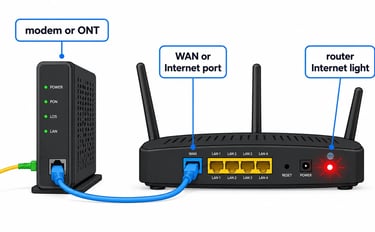
If your router Internet light is off or red, check the modem or ONT, WAN cable, router port, and ISP status before resetting or replacing anything.
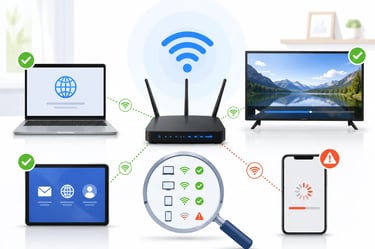

If only one device has slow internet, compare another device in the same spot, check apps, Wi-Fi band, signal, VPN, and device settings before blaming the router or ISP.
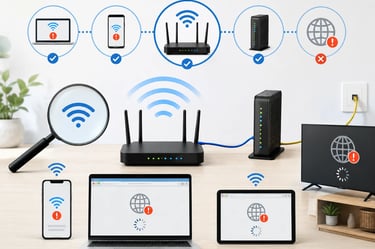
If Wi-Fi connected but no internet appears on your device, compare another device, restart safely, and check router, modem, ONT, or ISP signs.
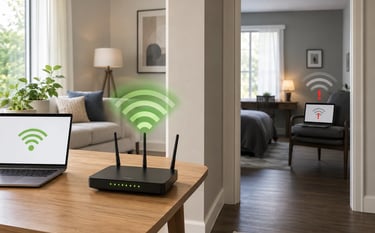
If Wi-Fi works near the router but not in another room, test the same device, compare another device, then check walls, bands, placement, and interference first.

If Ethernet works but Wi-Fi is slow, the internet line is usually fine. Test the same device, then check signal, band, placement, interference, and mesh issues first.
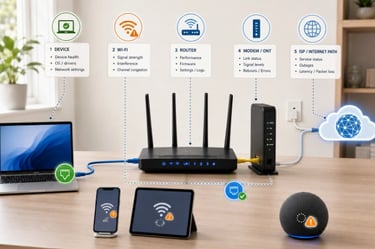
If your internet drops randomly, check whether one device, all Wi-Fi devices, Ethernet, router, modem, gateway, ONT, or ISP is causing it.

If Wi-Fi drops but Ethernet still works, test coverage, interference, mesh, router settings, and ISP status before you reset anything.

If your internet fails, check whether you have a gateway or separate modem and router, then use the safest restart order before resetting anything.

If internet drops after a power outage, check power, cables, modem lights, outage status, and restart order before resetting or buying hardware.

If mesh Wi-Fi keeps disconnecting, check whether one node, all nodes, Ethernet, placement, firmware, or your ISP is causing the drops before resetting anything.

Learn where to place a mesh Wi-Fi node so it actually helps: halfway to the weak area, open, elevated, away from blockers, and not inside the dead zone.


If your internet drops when streaming or gaming, check one device vs all devices, Wi-Fi vs Ethernet, cables, router, modem, and provider status first.

ONT vs Router: Which One Should You Check When Fiber Internet Fails?
If fiber internet fails, check one device vs all devices, Wi-Fi vs Ethernet, ONT lights, router WAN light, cables, and provider status before resetting anything.

Learn why your Wi-Fi is slow and how to fix it with simple checks for router placement, speed tests, device issues, network congestion, and ISP problems.

A Wi-Fi dead zone is an area in your home where the signal becomes weak, unstable, or unusable.

Router setup guide for home users. Connect your modem, create Wi-Fi, place the router, reset safely, secure your network, and fix common setup issues.

Router vs modem explained in plain English. Learn what each box does, whether you need both, and which one to check when Wi-Fi or internet fails.
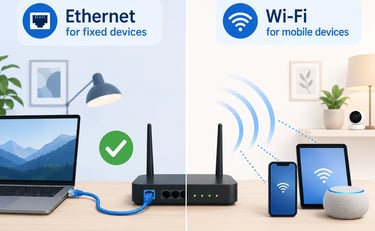
Compare Ethernet vs Wi-Fi for slow internet, gaming, streaming, work calls, smart TVs, and phones. Learn how to test both and choose the right setup.
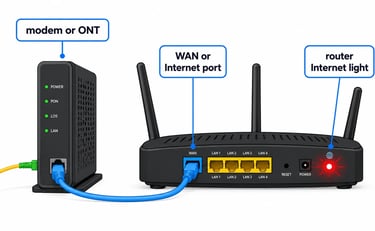
If your router Internet light is off or red, check the modem or ONT, WAN cable, router port, and ISP status before resetting or replacing anything.
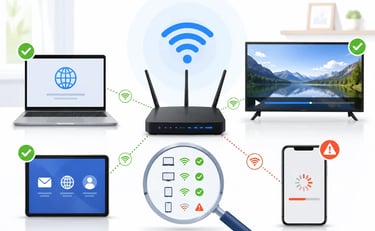
If only one device has slow internet, compare another device in the same spot, check apps, Wi-Fi band, signal, VPN, and device settings before blaming the router or ISP.
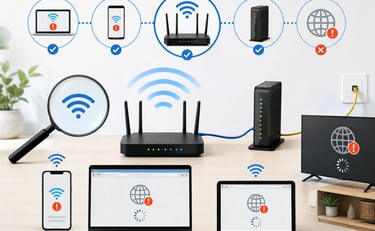
If Wi-Fi connected but no internet appears on your device, compare another device, restart safely, and check router, modem, ONT, or ISP signs.
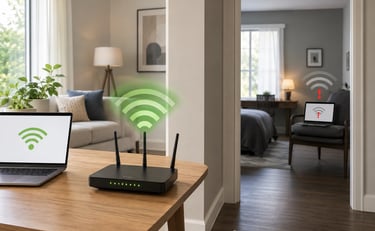
If Wi-Fi works near the router but not in another room, test the same device, compare another device, then check interference first.
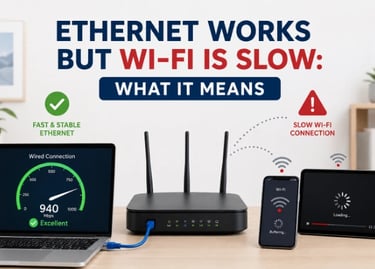
If Ethernet works but Wi-Fi is slow, the internet line is usually fine. Test the same device, then check signal, band, placement, interference, and mesh issues first.
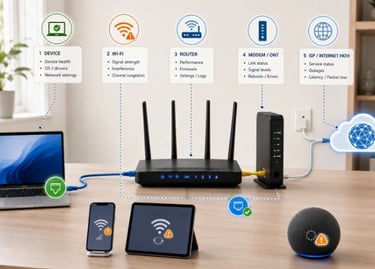
If your internet drops randomly, check whether one device, all Wi-Fi devices, Ethernet, router, modem, gateway, ONT, or ISP is causing it.

If Wi-Fi drops but Ethernet still works, test coverage, interference, mesh, router settings, and ISP status before you reset anything.

If your internet fails, check whether you have a gateway or separate modem and router, then use the safest restart order before resetting anything.

If internet drops after a power outage, check power, cables, modem lights, outage status, and restart order before resetting or buying hardware.
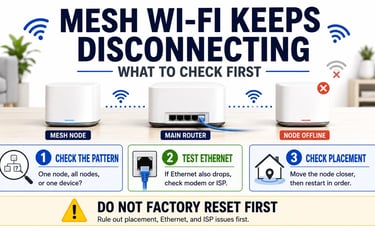
If mesh Wi-Fi keeps disconnecting, check whether one node, all nodes, Ethernet, placement, firmware, or your ISP is causing the drops before resetting anything.
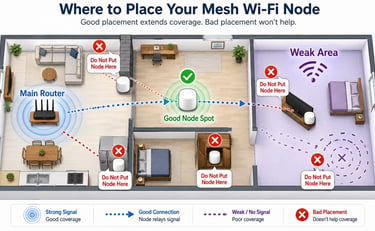
Learn where to place a mesh Wi-Fi node so it actually helps: halfway to the weak area, open, elevated, away from blockers, and not inside the dead zone.


If your internet drops when streaming or gaming, check one device vs all devices, Wi-Fi vs Ethernet, cables, router, modem, and provider status first.

If fiber internet fails, check one device vs all devices, Wi-Fi vs Ethernet, ONT lights, router WAN light, cables, and provider status before resetting anything.